Monday, March 9, 2015

VR Games for Extended Mode (Windows)

The difference between the Extended Mode and the Direct-to-Rift mode is very simple, at the extended mode the oculus rift is like a second monitor which extends the main monitor and in direct-to-rift mode the games directly start in the oculus rift and you can also show the game on the mainmonitor at the same time. Juergen explaned the differences before, so if you don't know yet, read his article and hopefully you know then :). So the direct-to-rift is the best way to play VR games but unfortunately not every game supports this mode. If there is a gamename-direct-to-rift.exe file then you can use direct mode, if not you have to switch to extended mode at the oculus rift. The tutorial how to setup windows and the oculus you can find at Juergens post before.

I want to talk about the games we just tested with the extended mode and the gamesettings and which games worked fine and which not.

One really cool tool i have to advice is open broadcaster software (OBS x64 - we tested v 0.64 beta) because this tool makes it possible to stream the monitor of the oculus rift to the mainmonitor just like we are used from the direct-to-rift mode. It's perfect if you play with other friends, so they can't watch the game also, because it's very boring if you see someone playing with the oculus rift and talking about the cool game but you can't see what he is playing so guys just get this tool and watch Juergen's tutorial how to setup for gaming.

So today we tested the following games on extended mode:

Motorbike vr: [Download]
It is a very funny motorbike game, where you have to drive threw courses to reach the finishline of every level. This game is absolutely fantastic and has a huge level of addiction. You have to improve you bike skills and sometime you really have to think about how to succeed, because some levels are very tricky. We loved this game and couldn't stop. But then we had to stop, because the demo ended. But we are lucky, because we can buy a fullversion to get all levels and we are really thinking about it because the game really persuaded. One really interesting point of the game is the view of the player because you see the game from the side with the oculus, which is not the view you would expect but its something new and its cool! :) So i really can recommend this game to every one of you. It's real fun!


Don't let go: [Download]
It's a kind of a horror game, where you have to press both ctrl buttons the whole game long. During the game many different shocking stuff happens and the game plays with the original view, that both arms are on the 2 buttons in front of an notebook. I don't want to ruin the suprise, so i don't tell you what is really happening, but its not the best horror game. I really recommend headphones because the soundeffects are perfect and without headphones the game is really boring. But with the headphones and the soundeffects its kind of shocking :). The graphics are oldfashioned and just ok but if you have some time left just try it yourself. It's not the best game but it's ok and the idea of the game is cool.


Snowboarding: [Download]

This game has a very cool view, because when you look down you'll see a snowboard directly on your feed. Controls are simple but working great. In the game there is a hill and you can decide where on the hill you want to start the game. It's very cool but what we were missing was some enemies or quests, like rails or halfpipes or just big big jumps, because you just board threw the snow. The next thing which is really boring is that no matter what you do you will always have the same speed. So you can't rush down the hill or something. So the game concept is again very cool but overall it's nice to see it one time but it's not the game you really want to play twice or more often. The graphics are also just average.


Magical Rift Heroin: [Download]
We also tried to start the game magical rift heroin, because it looks very fascinating but it didn't start on direct-to-rift mode so we had to start it also on extend mode. The problem was that the game always starts on the main monitor and if you put it on the oculus rift the game has some bad border. We didn't check it with other drivers and settings yet but we'll try it this week.


Well that were all games that we tested today. Next time we will start the really cool stuff with the extended mode: Playing older (not VR) classic games with vireio perception driver.
We will try: Borderlands, Mirror's Edge and many more!

So stay tuned, greez Micha!

Thursday, March 5, 2015

3D-Driver "Vireio Perception" for Oculus Rift DK2 (Extended Mode, Windows)

The 3D-Driver Vireio Perception makes it possible to play some "normal" games (like Borderlands, Far Cry,...) on the Oculus Rift DK2 as well. It's only working in the Extended Mode. The driver is very easy to handle and has a very good manual. There is also a list of games which are supported and a instruction for each application, how to configure and use.

We made very good experiences with this driver. Configuration for a game you want to play takes 5 minutes maximum (first time).
The only disadvantage is, that you have to use the Oculus Rift Runtime 0.4.4-beta which makes troubles (Judder) with applications which are made for Oculus Rift (Direct to rift, Unity,...) - we told about this issue in a post in February. If you use an older version, head-tracking may not work (it also says in-game "HMD not detected").
By the way: Some users in VR-Communities told that the issue with Oculus Rift Runtime 0.4.4-beta only exists with Windows 8.


Run a game the first time with Vireio Perception

  1. If you haven't installed yet, install Oculus Rift Runtime 0.4.4-beta (uninstall older version first)
  2. Run Oculus Configuration Utility, use "Extend Desktop to the HMD" in Tools>Rift Display Mode... and uncheck "DK1 Legacy App Support"
  3. Download and install Vireio Perception (we used V2.13)
  4. Read the instructions for the game you want to play on the Oculus Rift DK2
  5. Start the game (without Vireio Perception running) and do the settings, which are written in the manual (sometimes there are none) and set the resolution to 1920x1080.
  6. Run the Vireio DLL Symlink Installer as administrator (VireioDLLInstaller.exe in Perception's bin-folder) and browse to your game-folder. Press 'OK' in every following dialog.
  7. Exit the game and run Vireio Perception as administrator (Perception.exe in Perception's bin-folder). The settings should be right after startup, you can compare them with our's in the screenshot below.
  8. Start the game
  9. Follow Perception's instructions in the game and everything should be fine :)
Settings for Step 7


HINT: Use CTRL+R or SHIFT+L for calibrating/reset head-tracking. With CTRL+Q you are able to change the settings of Vireio Perception.

If you want to mirror the display of the Oculus Rift DK2 on your main desktop, try using the Open Broadcaster Software (described HERE).

We also recommend to set the Oculus Rift DK2 in Windows' "Screen Resolution"-Settings (right-click on desktop) as the left display:


Uninstall Vireio Perception from a game
If you have run the Vireio DLL Symlink Installer for a game, it's sometimes impossible to play the game without the Oculus Rift DK2 anymore (error-message). To remove the files, which created the Installer in the game folder, you have to do the same as for installing (see Step 6 above).


The settings and device we used for the test are specified >HERE<.

Tuesday, March 3, 2015

Oculus Rift DK2 - Modes (Windows)

As we mentioned before, there are two Modes how you can use your Oculus Rift DK2. In this post we are trying to describe the two modes and the "Extended Mode" in detail. The settings and device we used for the test are specified >HERE<.
You can change the Rift Display Mode in the "Oculus Configuration Utility". Select "Tools" in the menubar and then "Rift Display Mode...".

Direct HMD Access from Apps (Direct to Rift)
This display mode is for "Direct to Rift"-Applications.
Not every application is made for this mode. If you download one and the application-folder contains an executable which ends with "_DirectToRift.exe", it is (usually) compatible.
It's very easy to use. What you have to do is to start "..._DirectToRift.exe" and after a few seconds you should see something through your Oculus Rift DK2.
The most applications also show on the main desktop what the user sees on the Oculus Rift DK2. Sometimes there is an option to deactivate this (see readme-files in application-folder), which gets a little more performance.

Extend Desktop to the HMD
When you are activating this display mode, the computer recognizes the Oculus Rift DK2 as second monitor. This is a point, which makes it very complicated.

Best case:
Some applications (like "Don't let go"), which are made with Unity, detect which desktop the Oculus Rift DK2 is and starts there.

Worst case:
Some readme-files of applications tell the user to set the Oculus Rift DK2 to the main screen in Windows' "Screen Resolution"-settings. You'll see, that this brings a few troubles with it e.g. the taskbar and programs are only on Oculus Rift and you're not able to read anything. You can help yourself by looking through the Oculus Rift and closing one eye (now it's readable).

Solutions which sometimes work:

  • Set the Oculus Rift DK2 as the left desktop in Windows' "Screen Resolution"-settings.
  • Type "MYGAME.exe -adapter 1" in an editor and save it as .bat-file in the application-folder. Replace MYGAME.exe with the executable of the program and find the correct adapter-number.


3rd case:
If your application doesn't detect the Oculus Rift DK2, you can experiment with drag and drop, WINDOWS+LEFT/RIGHT ARROW (put window to the left/right) and ALT+ENTER (Fullscreen) but in most cases you won't get a perfect result (e.g. borders around the application).
Also a big disadvantage is, that the application is only shown on the Oculus Rift DK2 and sometimes spectators also want see to what is displayed on the device. The solution is the Open Broadcaster Software (we used V0.64 beta).

Open Broadcaster Software (Tool we used for mirroring):
You have to do the following steps, to mirror the display of the Oculus Rift DK2:

  1. Add a Profile by selecting Profiles>New.
  2. Select Settings>Settings>Advanced and check "Disable encoding while previewing"
  3. Do a left-click in the listbox "Scenes" and add a new one.
  4. Add the source "Monitor Capture" by doing a left-click in the listbox "Sources"
  5. Select the correct ID of the monitor (experiment a little bit)
  6. Add the source "Game Capture" by doing a left-click in the listbox "Sources" and click "OK". You don't have to change these settings.
Now the tool is ready for mirroring. My recommendation is to activate only one source (Monitor or Game Capture). Click the button "Preview Stream" to show what's going up on your Oculus Rift DK2.
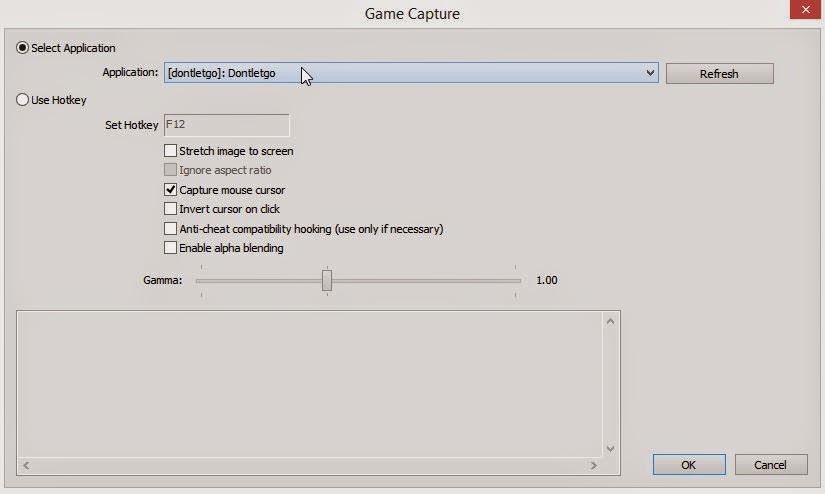
"Game Capture" is when you want to display a fullscreen-application. Start the application you want to show on the Oculus Rift (maybe drag and drop to right desktop and ALT+ENTER for fullscreen), do a left-click on "Game Capture" in Open Broadcaster Software and select "Settings" and choose the fullscreen-program you started. After saving click the button "Preview Stream" for mirroring.

Sample of settings for "Game Caputre"
Game Capture
Monitor Capture


In the upcoming post i'm telling about our experiences with the open source tool "Vireio Perception", which makes it possible, to play some "normal" games on the Oculus Rift DK2.

Friday, February 13, 2015

First impressions on starting a game on Oculus Rift DK2 (Windows)

Let's try to start a fancy game to see if the virtual reality is really that impressive.

Stuff about the hardware we use and our graphics card settings you can read in the article of Juergen.
After installing the Oculus Rift, we wanted to see the magic stuff. Like Juergen mentioned before, there are 2 different ways to start the game:
- Extended Mode
- Direct to Rift Mode

We tried to find games which have a native support for oculus rift, that means the games are developed directly for oculus rift and do support the new Direct-to-Rift-Mode.

Before we explain the different games and how they worked, we have to mention that we the last 3 runtimes of oculus (0.4.4, 0.4.3 and 0.4.2) and there are really huge differences comparing the game performances we found out by starting one game with several different runtimes and Nvidia Driver versions:

Setup best driver and runtime for the games:

We tested different Oculus Runtimes and drivers with the game Affected v1.55 (direct-to-rift): 

Nvidia graphics driver 347.52:

0.4.4:
35 FPS and very lagging

0.4.3:
same performance like 0.4.4 around 35 FPS and the text gets doubled when you move your head quickly.

0.4.2:
75-80 FPS and it is a huge difference and a way better gaming performance!
in the game it is possible to stop the game on the monitor and only show it on the oculus rift, then the game some small lagging issues also disappear.

We were not satisfied with the result because of the small lags when you moved your head to quick, so we tried an older version of the nvidia graphics card driver: 344.75 again with 0.4.2 runtime and the
small lags also disappeared. The FPS were now at 75 but much more stable. So now it doesn't matter if you press M to switch off the monitor or not. The game performance is perfect now!

So it really does matter which graphics card driver you have installed and which runtime of oculus you use. At first we thought omg how bad is this and we felt sick after a few seconds of playing affected. Now it is a completely different performance and the game is awesome!

Overall: We recommend: 0.4.2 Oculus Runtime and Nvidia Graphiccard Driver 347.52
In other games (i mention later at the game) the higher Oculus Runtime Driver occurs different errors and on 0.4.2 every game started and had a good performance.

Here are the first free games we found in the net (and the first impressions):


Affected: [Download]
I think affected is the best direct to rift game of all. it has a impressive graphic and it is a really funny and scaring game. if you want to show a friend how cool oculus rift is, then affected is definitely the game you want to show.

Affected supports direct-to-rift and extended mode, but we tried the extend mode and the FPS were at 35 instead of stable 75 FPS at direct-to-rift!


Bullet Evasion: [Download]
A very funny little Ballgame for the Oculus Rift. Graphics are very simple but the game itself is very funny and it doesn't need a highend graphic because of the simple game principle. Many balls get thrown on you and you have to avoid the balls by moving your head with the oculus from left to right and other way round.
Bullet Evasion isn't working with 0.4.4 & 0.4.3. It crashes at the start. If you start it with 0.4.2 runtime it works perfectly fine! Very cool is if you press M then friends can want your game on the monitor!


RiftCoasterHD: [Download]
0.4.4: It crashes at the beginning.
0.4.3: It runs but at very low performance.
0.4.2: The performance is much better than at 0.4.3 but also not very acceptable. It is lagging at medium and low settings and if you switch to low then it also looks very ugly compared to the high settings. So we will try to get the game working with better performance later, because i think the graphics at high could be very special if the game runs stable and without lags. The game itself is a normal rollercoaster game.

Elevator Horror: [Download]
This game we only tried at 0.4.2 an it is working. Interesting is that the game performance is very bad although the graphics is compared to affected very very simple. The game principle is also as simple as the graphics. You stand in an elevator and drive from level to level and if the door opens something happens. Should be shocking but try it yourself and hopefully you will be shocked! Hopefully not from the graphics! :)

So that were all games that we tested for direct to rift and now we will test some games with extended mode and try to get the best performance out of the games. In our next post we will try to find the best way how to setup Oculus Rift Games in Extended mode.

Thanks for reading our blog and have a nice weekend!

Stay tuned, greez Micha!

Oculus Rift Runtime, Graphic-Settings, Optimization (Windows)

The configuration of the Oculus Rift DK2 is a big topic. We made tests with different drivers, graphic-settings, tools, etc. Our test-application was Affected v1.55, which is by the way in my opinion one of the best games for the Oculus Rift DK2. Micha will tell you more about this game soon.

Test Device:
Acer Aspire V3-772G Notebook
Windows 8.1 64-bit
Intel Core i7-4702MQ 2.2 Ghz
NVIDIA GeForce GTX 760M
32GB DDR3 Memory

Oculus Rift Runtime
We tried 3 different versions of the Oculus Rift Runtime: 0.4.2-beta, 0.4.3-beta and 0.4.4-beta
To make it short: The best driver of our test was the Oculus Rift Runtime 0.4.2-beta:

Version
Test-result
0.4.4-beta When I moved my head in the game, everything is getting double (most effected the text on the wall).
Only 35 FPS with direct to rift and 60 FPS with extended mode.
0.4.3-beta Same as above
0.4.2-beta No issues like in 0.4.4-beta and 0.4.3-beta.
Runs without lags und perfect graphics.
Constant 75-76 FPS in direct to rift mode.

If you also want to display your FPS, you have to press 'Space' in the VR-Application (works in Affected and some other applications).

Graphic Settings
At first we used the NVIDIA Driver Version 347.52 which worked very good with Oculus Rift Runtime 0.4.2-beta. But sometimes there were some lags, which annoyed us a bit. In Affected v1.55 you can press 'M' to refresh the picture of the game only on the Oculus Rift, which reduces the lags.

But the best solution for this problem is, to install the NVIDIA Driver Version 344.75.
It also raised the frame rate to 77-80 FPS.


We also made some custom settings in the NVIDIA Control Panel:

Manage 3D Settings:

Preferred graphics processor: High-performance NVIDIA processor
Feature
Setting
Ambient Occlusion Off
Anisotropic filtering Application-controlled
Antialiasing - FXAA Off
Antialiasing - Mode Application-controlled
Antialiasing - Setting Application-controller
Antialiasing - Transparency Off
CUDA - GPUs All
Maximum pre-rendered frames 1
Multi-display/mixed-GPU acceleration Multiple display performance mode
Power management mode Prefer maximum performance
Shader Cache On
Texture filtering - Anisotropic sample optimization Off
Texture filtering - Negative LOD bias Allow
Texture filtering - Quality Quality
Texture filtering - Trilinear optimization Off
Threaded optimzation Auto
Triple buffering Off
Vertical sync On
Virtual Reality pre-rendered frames 1

Set PhysX Configuration:
PhysX processor: GeForce GTX 760M


If you still have lags, maybe the next topic will help you a bit.

Optimization
Reset Oculus Rift view:
Sometimes there are lags if you didn't adjust the Oculus Rift view. Sit or stay in the position in which you want to play and press 'R' (works in the most applications) to reset the view.
This solved our biggest problems with lags.

Disable Aero:
To disable Aero had only a small effect to the lags. When we changed to NVIDIA Driver Version 344.75 the impact wasn't noticable any more but maybe it's the solution to your problem.
For disabling Aero you preferably use the Oculus Service Manager.

Thursday, February 12, 2015

Getting started with Oculus Rift DK2 (Windows)

The installation and configuration of the Oculus Rift DK2 is very easy.
Here are the steps we did on an Acer Aspire V3-772G Notebook with Windows 8.1 (64 bit):

Installation:
Oculus Rift DK2:
  1. Install Oculus Runtime for Windows (Our recommendation: 0.4.2-beta)
  2. Restart the PC
  3. Plug in the USB and HDMI cable

(Optional) Oculus Positional Trakcer DK2:
The Oculus Positional Tracker DK2 is optional. It only tracks if you are going a few steps to the left/right or bending to the left/right. The glass itself follows your head movements which is for the most games enough.
  1. Plug in the small connector to the black box on the cable of the Oculus Rift DK2 ("Sync Out")
  2. Plug in the USB to the PC
  3. Put the Oculus Positional Tracker DK2 onto the display/monitor
Now it should look like this

Configuration:
To configure your device you have to run "OculusConfigUtil". Everytime you use your Oculus Rift DK2, this program has to run at least in the background. An icon in the taskbar is shown.
The Oculus Configuration Utility should now show the Model, Firmware and Serial:
If it isn't shown, press the button on the top of the Oculus Rift DK2.
Set the eye relief of both eye cups by setting the circle with the slider to the same position as it is on the left and right side of the Oculus Rift DK2.
Now add a new profile by clicking the "+"-button. Set your gender and body height. In our opinion the advanced options aren't necessary because they have only little impact.

Click the button "Show Demo Scene" and a work desk is displayed on the Oculus Rift DK2 and also movements are tracked.

Step by step summary of the configuration:
  1. Run "OculusConfigUtil"
  2. If details of your Oculus Rift DK2 aren't shown, press the button on the top of the glass
  3. Set eye relief like on the left and right side of the Oculus Rift DK2
  4. Add a new profile and set your gender and body height
  5. Click "Show Demo Scene" to check, if everything is working

Your Oculus Rift DK2 is ready to get into action!!!
But: If you think, you can run every game on your Oculus Rift DK2, you are wrong. There are seperate applicaitons which are made for the Oculus Rift and there are two different types:

Direct to Rift:
If you read "Direct to Rift" anywhere in a readme- or .exe-file of an application, you have to set the Oculus Rift DK2 to the display mode "Direct HMD Access from Apps" (see instructions below).
The application is displayed directly on the Oculus Rift DK2 and you can also see a copy of the view on the main desktop.

Extended Desktop:
You can also set the Oculus Rift DK2 as second display, which is required for some applications. Therefore you have to set your device to the display mode "Extend Desktop to the HMD".
Our Experience: It's very hard to get the application on the display of the Oculus Rift. You have to drag it to the second desktop while looking through the glass with one closed eye. But we heard that there are helpful tools, which are able to start the application on the desired display.

Changing the display mode:
  1.  Do a right-click on the icon of the Oculus Configuration Utility in the taskbar
  2. Choose "Rift Display Mode"
  3. Check "Direct HMD Access from Apps"