Showing posts with label Extended Mode. Show all posts

Thursday, March 5, 2015

3D-Driver "Vireio Perception" for Oculus Rift DK2 (Extended Mode, Windows)

The 3D-Driver Vireio Perception makes it possible to play some "normal" games (like Borderlands, Far Cry,...) on the Oculus Rift DK2 as well. It's only working in the Extended Mode. The driver is very easy to handle and has a very good manual. There is also a list of games which are supported and a instruction for each application, how to configure and use.

We made very good experiences with this driver. Configuration for a game you want to play takes 5 minutes maximum (first time).
The only disadvantage is, that you have to use the Oculus Rift Runtime 0.4.4-beta which makes troubles (Judder) with applications which are made for Oculus Rift (Direct to rift, Unity,...) - we told about this issue in a post in February. If you use an older version, head-tracking may not work (it also says in-game "HMD not detected").
By the way: Some users in VR-Communities told that the issue with Oculus Rift Runtime 0.4.4-beta only exists with Windows 8.


Run a game the first time with Vireio Perception

  1. If you haven't installed yet, install Oculus Rift Runtime 0.4.4-beta (uninstall older version first)
  2. Run Oculus Configuration Utility, use "Extend Desktop to the HMD" in Tools>Rift Display Mode... and uncheck "DK1 Legacy App Support"
  3. Download and install Vireio Perception (we used V2.13)
  4. Read the instructions for the game you want to play on the Oculus Rift DK2
  5. Start the game (without Vireio Perception running) and do the settings, which are written in the manual (sometimes there are none) and set the resolution to 1920x1080.
  6. Run the Vireio DLL Symlink Installer as administrator (VireioDLLInstaller.exe in Perception's bin-folder) and browse to your game-folder. Press 'OK' in every following dialog.
  7. Exit the game and run Vireio Perception as administrator (Perception.exe in Perception's bin-folder). The settings should be right after startup, you can compare them with our's in the screenshot below.
  8. Start the game
  9. Follow Perception's instructions in the game and everything should be fine :)
Settings for Step 7


HINT: Use CTRL+R or SHIFT+L for calibrating/reset head-tracking. With CTRL+Q you are able to change the settings of Vireio Perception.

If you want to mirror the display of the Oculus Rift DK2 on your main desktop, try using the Open Broadcaster Software (described HERE).

We also recommend to set the Oculus Rift DK2 in Windows' "Screen Resolution"-Settings (right-click on desktop) as the left display:


Uninstall Vireio Perception from a game
If you have run the Vireio DLL Symlink Installer for a game, it's sometimes impossible to play the game without the Oculus Rift DK2 anymore (error-message). To remove the files, which created the Installer in the game folder, you have to do the same as for installing (see Step 6 above).


The settings and device we used for the test are specified >HERE<.

Tuesday, March 3, 2015

Oculus Rift DK2 - Modes (Windows)

As we mentioned before, there are two Modes how you can use your Oculus Rift DK2. In this post we are trying to describe the two modes and the "Extended Mode" in detail. The settings and device we used for the test are specified >HERE<.
You can change the Rift Display Mode in the "Oculus Configuration Utility". Select "Tools" in the menubar and then "Rift Display Mode...".

Direct HMD Access from Apps (Direct to Rift)
This display mode is for "Direct to Rift"-Applications.
Not every application is made for this mode. If you download one and the application-folder contains an executable which ends with "_DirectToRift.exe", it is (usually) compatible.
It's very easy to use. What you have to do is to start "..._DirectToRift.exe" and after a few seconds you should see something through your Oculus Rift DK2.
The most applications also show on the main desktop what the user sees on the Oculus Rift DK2. Sometimes there is an option to deactivate this (see readme-files in application-folder), which gets a little more performance.

Extend Desktop to the HMD
When you are activating this display mode, the computer recognizes the Oculus Rift DK2 as second monitor. This is a point, which makes it very complicated.

Best case:
Some applications (like "Don't let go"), which are made with Unity, detect which desktop the Oculus Rift DK2 is and starts there.

Worst case:
Some readme-files of applications tell the user to set the Oculus Rift DK2 to the main screen in Windows' "Screen Resolution"-settings. You'll see, that this brings a few troubles with it e.g. the taskbar and programs are only on Oculus Rift and you're not able to read anything. You can help yourself by looking through the Oculus Rift and closing one eye (now it's readable).

Solutions which sometimes work:

  • Set the Oculus Rift DK2 as the left desktop in Windows' "Screen Resolution"-settings.
  • Type "MYGAME.exe -adapter 1" in an editor and save it as .bat-file in the application-folder. Replace MYGAME.exe with the executable of the program and find the correct adapter-number.


3rd case:
If your application doesn't detect the Oculus Rift DK2, you can experiment with drag and drop, WINDOWS+LEFT/RIGHT ARROW (put window to the left/right) and ALT+ENTER (Fullscreen) but in most cases you won't get a perfect result (e.g. borders around the application).
Also a big disadvantage is, that the application is only shown on the Oculus Rift DK2 and sometimes spectators also want see to what is displayed on the device. The solution is the Open Broadcaster Software (we used V0.64 beta).

Open Broadcaster Software (Tool we used for mirroring):
You have to do the following steps, to mirror the display of the Oculus Rift DK2:

  1. Add a Profile by selecting Profiles>New.
  2. Select Settings>Settings>Advanced and check "Disable encoding while previewing"
  3. Do a left-click in the listbox "Scenes" and add a new one.
  4. Add the source "Monitor Capture" by doing a left-click in the listbox "Sources"
  5. Select the correct ID of the monitor (experiment a little bit)
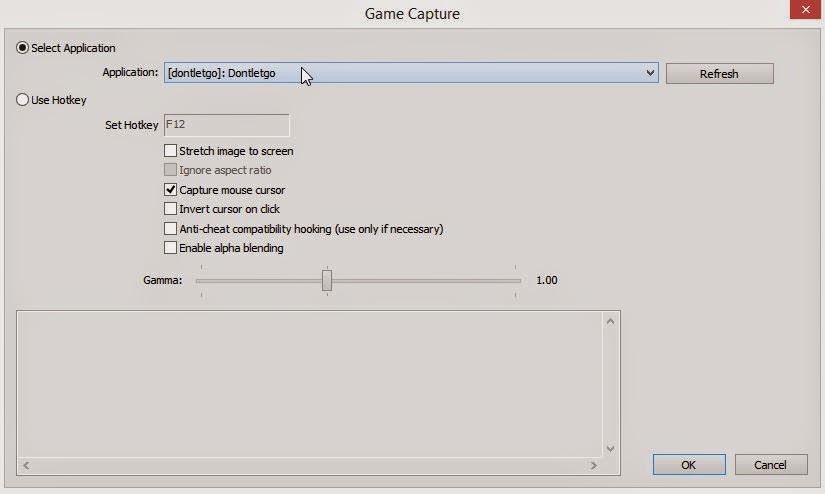
  6. Add the source "Game Capture" by doing a left-click in the listbox "Sources" and click "OK". You don't have to change these settings.
Now the tool is ready for mirroring. My recommendation is to activate only one source (Monitor or Game Capture). Click the button "Preview Stream" to show what's going up on your Oculus Rift DK2.
"Game Capture" is when you want to display a fullscreen-application. Start the application you want to show on the Oculus Rift (maybe drag and drop to right desktop and ALT+ENTER for fullscreen), do a left-click on "Game Capture" in Open Broadcaster Software and select "Settings" and choose the fullscreen-program you started. After saving click the button "Preview Stream" for mirroring.

Sample of settings for "Game Caputre"
Game Capture
Monitor Capture


In the upcoming post i'm telling about our experiences with the open source tool "Vireio Perception", which makes it possible, to play some "normal" games on the Oculus Rift DK2.